Keep writing in Google Docs and deciding in Zentrik. Choose specific Docs for shared workspace context, link initiative documents to picked or app-created files, and refresh when both sides change without copy-pasting between tabs.
Use Zentrik for prioritization, discovery, and initiatives, and Google for drafting and comments your team already knows. Pull Docs you explicitly choose into workspace context so everyone works from the same source, or link an initiative document to a picked or app-created Doc when collaboration should stay in Drive.
For imports, choose a file with Google Picker and confirm its preview. To hand a Zentrik document to your team, use Export → Google Docs.
Access & permissions
What Zentrik requests when you connect. You can review or revoke access from the provider's account or admin console anytime.
- Google Drive : Open only the specific files you choose so you can import Docs into Zentrik.
- Google Docs : Read and update picked or app-created Docs when your workflow keeps an initiative document in sync.
- Google account : Shows which Google profile is connected for this workspace.
Export a complete document
Open an initiative document and select Export. If needed, choose Connect beside Google Docs; after consent you return to the same export. Check the connected account and title, then select Google Docs → Export copy. Zentrik saves your edits first, then creates an editable Google Doc with its tables, links and uploaded PNG/JPEG images. Open the result to review it with your team. The connected Google account owns the new file; its sharing permissions apply.
The exported copy is a snapshot. Later edits in either app do not change the other copy. Repeating an export for the same saved revision and title reopens the previous result. A changed revision creates a new copy.
Use Insert image to upload an image before exporting. External image links cannot be packaged safely; export will ask you to upload them. Download Word (.docx) provides the same document package without a Google connection.
Existing linked-document synchronization supports text. Documents with images or tables must use Export so those elements are preserved.
Connect Google Drive
Connect from Settings → Integrations → Google Drive and approve Google’s consent screen. You only do this once for the workspace integration your team shares.
Before you start
- A Google account that can open the Docs you need.
- If your company blocks third-party apps, a Google Workspace admin may need to allow Zentrik before OAuth succeeds.
Authorize in Zentrik
- Settings → Integrations → Google Drive.
- Start connect and pick the Google account that owns or has access to the Docs.
- Approve the requested permissions.
If sign-in is blocked, work with your Google admin, then try again.
How to use it
Capabilities show up in workspace context imports and initiative document flows. Upstream collaboration can stay in Google while Zentrik stays the place for product decisions and traceability.
Workspace context
Import Google Docs you explicitly choose into shared workspace context so discovery, planning, and traceability reference the same PRDs, research notes, or decision logs you already maintain in Drive.
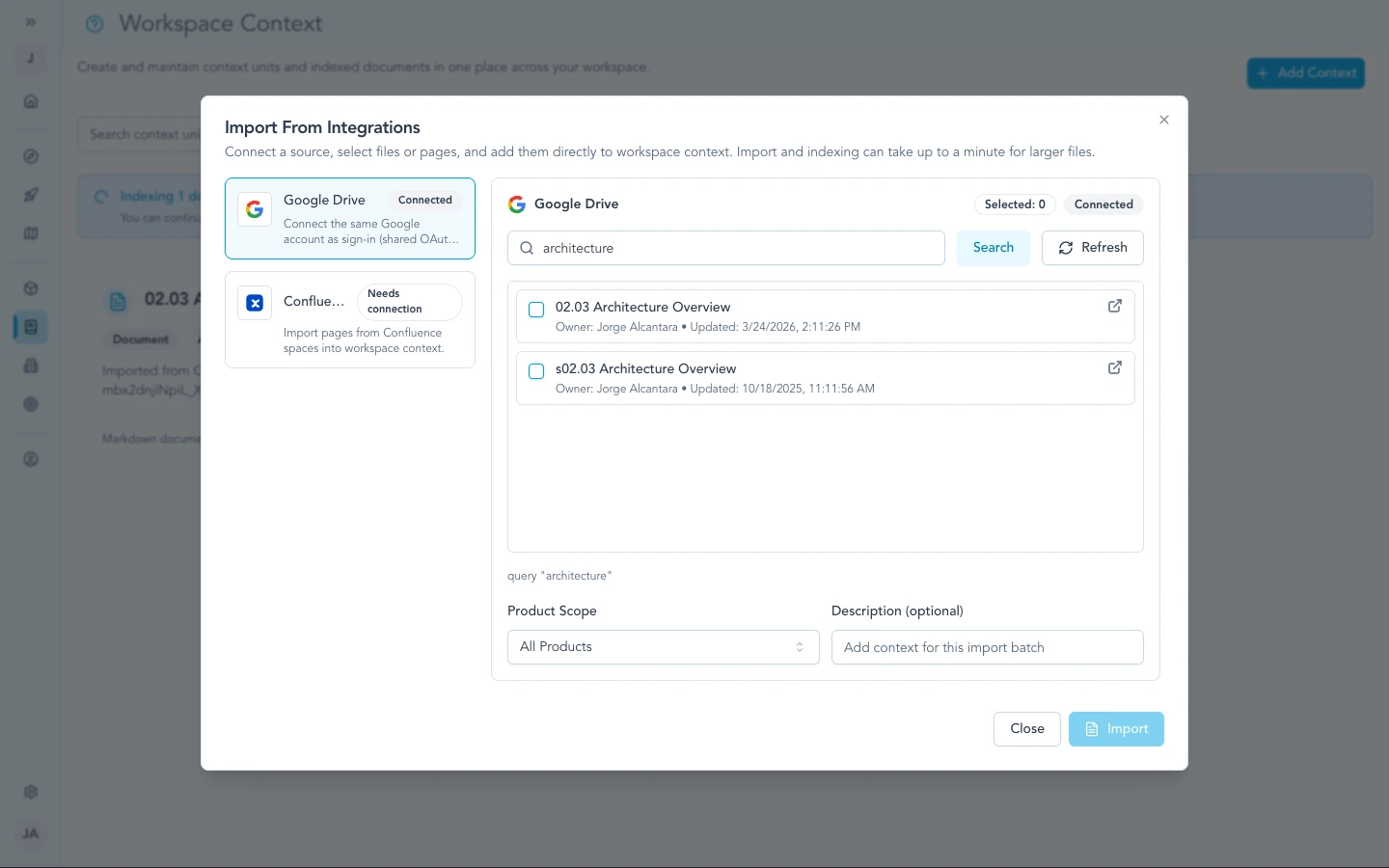
From workspace context imports, search Drive and pick a Doc to pull into shared Zentrik context.
Initiative documents
Link an initiative document to a Google Doc you explicitly choose or create upstream from Zentrik when your process expects continued editing in Google. When your workflow calls for it, refresh approved upstream changes into Zentrik or publish approved Zentrik edits back to the Doc. Comments stay managed in Google; Zentrik can surface them for context where the product supports it.
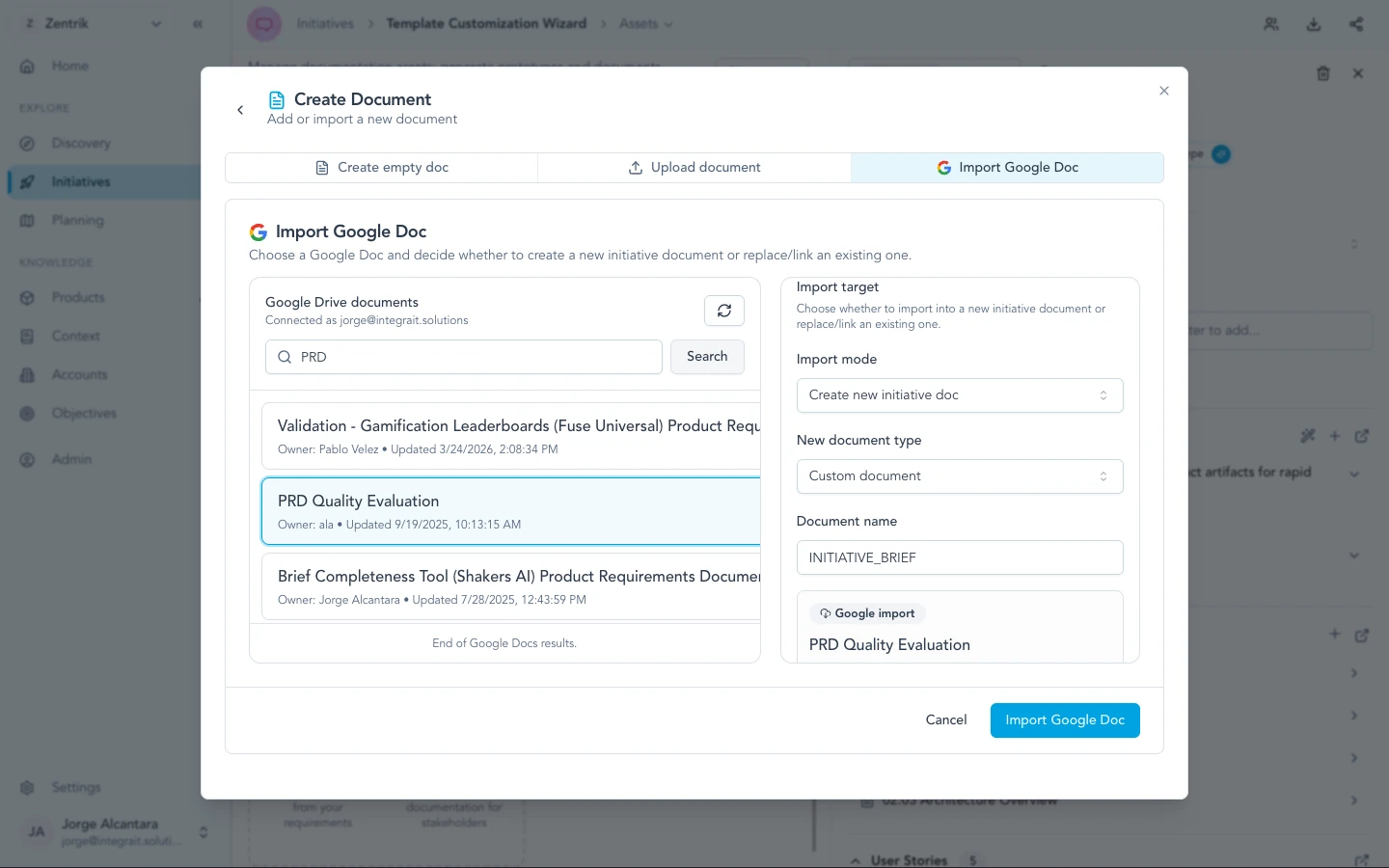
On an initiative, link or import from Google Docs so collaboration can stay upstream while Zentrik holds the product record.
One initiative, every document
Audience drafts
Executive brief
revenue path
Product PRD
evidence path
Engineering spec
effort scope
QA plan
risk review
One initiative, every document
Audience drafts
Executive brief
revenue path
Product PRD
evidence path
Engineering spec
effort scope
QA plan
risk review
Once context is linked, Zentrik can generate audience-specific documents from the same initiative while keeping source evidence, requirements, review state, and export targets visible.
For workspace admins
- One Google Drive integration per Zentrik workspace is typical: teammates reuse it instead of each signing in separately for the same workspace tasks.
- Zentrik only uses Google access for the workflows above: choosing specific files with Google Picker, importing content, and optional initiative document sync.
- Revoke from Google Account security or by disconnecting in Settings → Integrations. If your admin changes policies, reconnect from Zentrik to refresh consent.
Troubleshooting
Most connection problems clear up after a fresh authorization or an admin allows the app. If you have tried that and still cannot connect, contact us and we will help.
Cannot connect or Google blocks the app
Ask your Google Workspace admin to allow Zentrik, then disconnect and reconnect under Settings → Integrations → Google Drive. Contact us if it still fails after admin approval.
File or Doc not found
Confirm you connected with the Google account that owns or has shared access to that Doc, then re-open Google Picker and choose the file again. Disconnect in Zentrik and connect with the right profile if needed.
Stopped working after a while
Reconnect from Settings → Integrations. If problems continue, disconnect completely and authorize once more.
Continue from here
Related guides
Did this guide answer your question?
Your response helps us prioritize missing or unclear documentation.
Still stuck?
Send your question to Zentrik support. This guide will be included automatically.